Emby
Emby is a personal media server that organizes and streams your own videos, music, photos, and live TV to your devices.
Table of contents
- Signing In via Web Browser
- Signing In via Mobile App (iOS / Android)
- Signing In via Smart TV / Streaming Device (Roku, Android TV, Apple TV, Fire TV)
Signing In via Web Browser
- Direct Launch: From your dashboard under My applications, click the Emby tile to launch the web client.
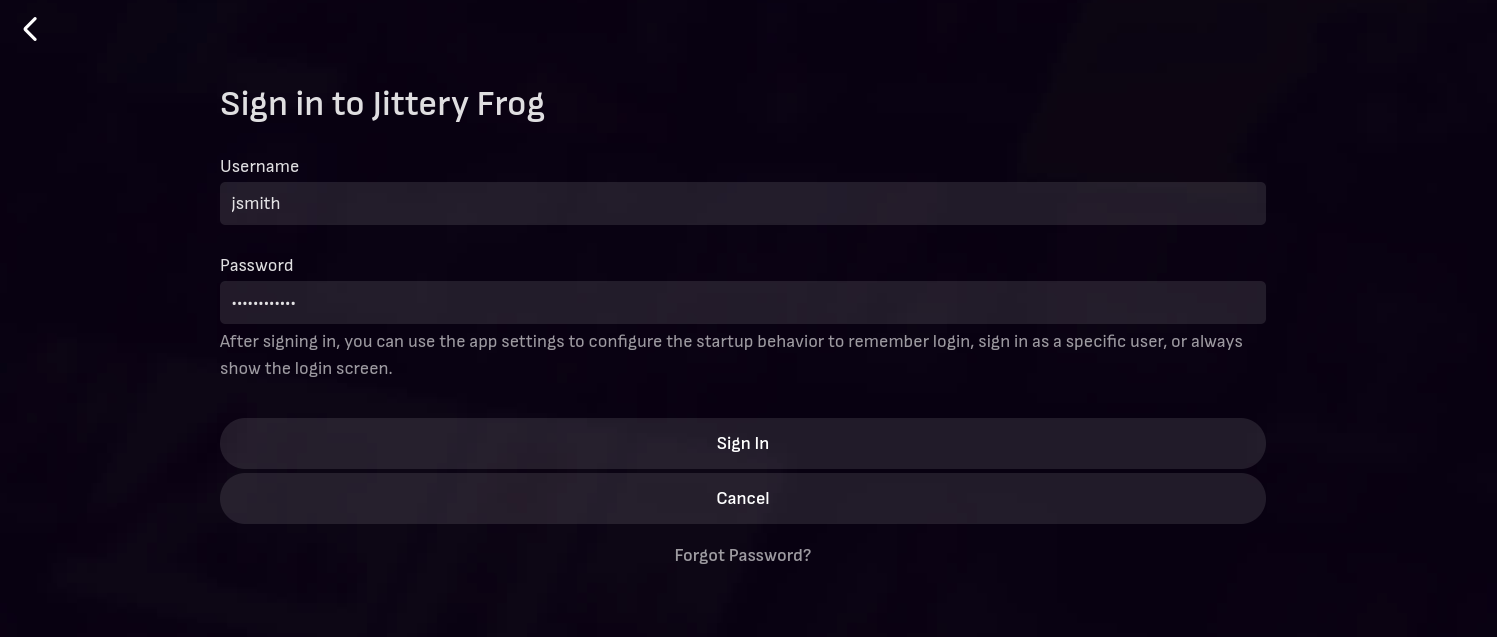
- Authenticate: If prompted, enter the username and password you created during enrollment to sign in.
- Direct Address (Alternative): If accessing outside the application portal, navigate directly to your server’s URL in any browser and enter your credentials.
Signing In via Mobile App (iOS / Android)
Do not click “Sign in with Emby Connect”. It requires me to put your email in beforehand.
- Download: Install the official Emby app from the Apple App Store or Google Play Store.
- Add Server: Open the app and tap Add Server.
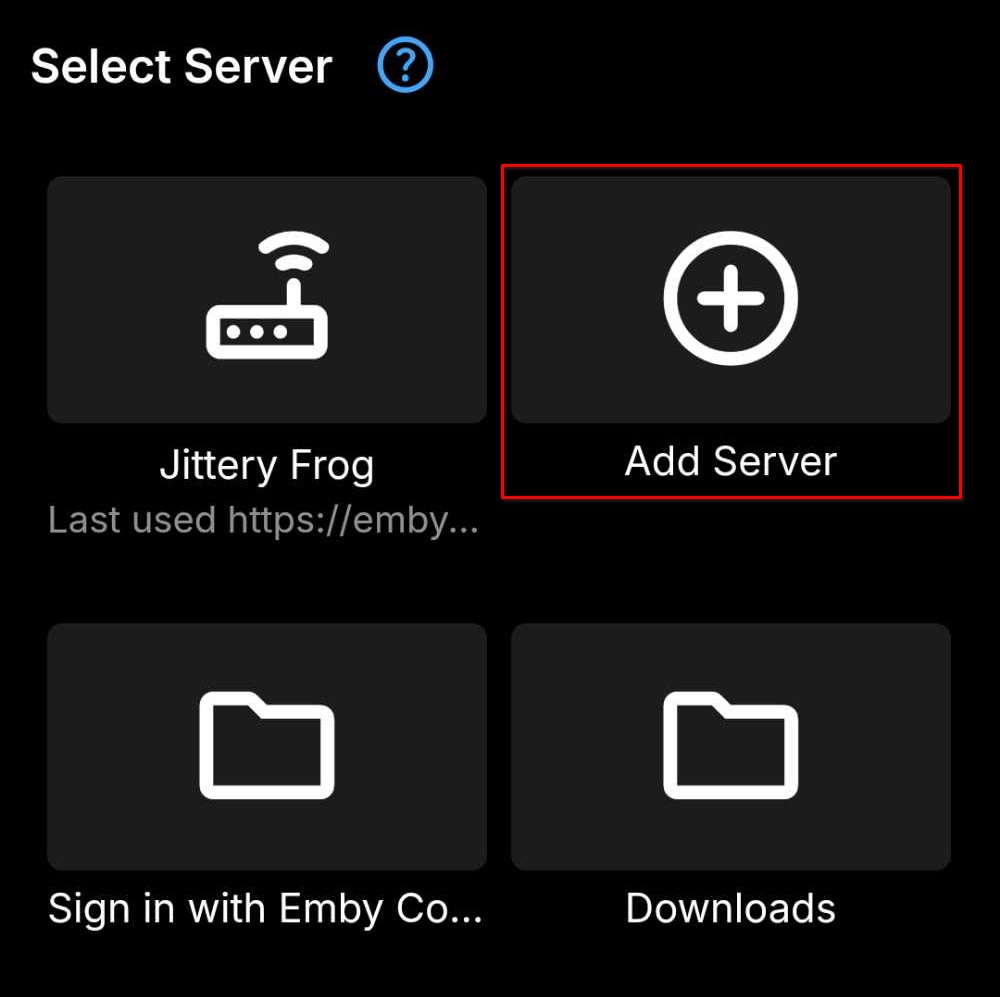
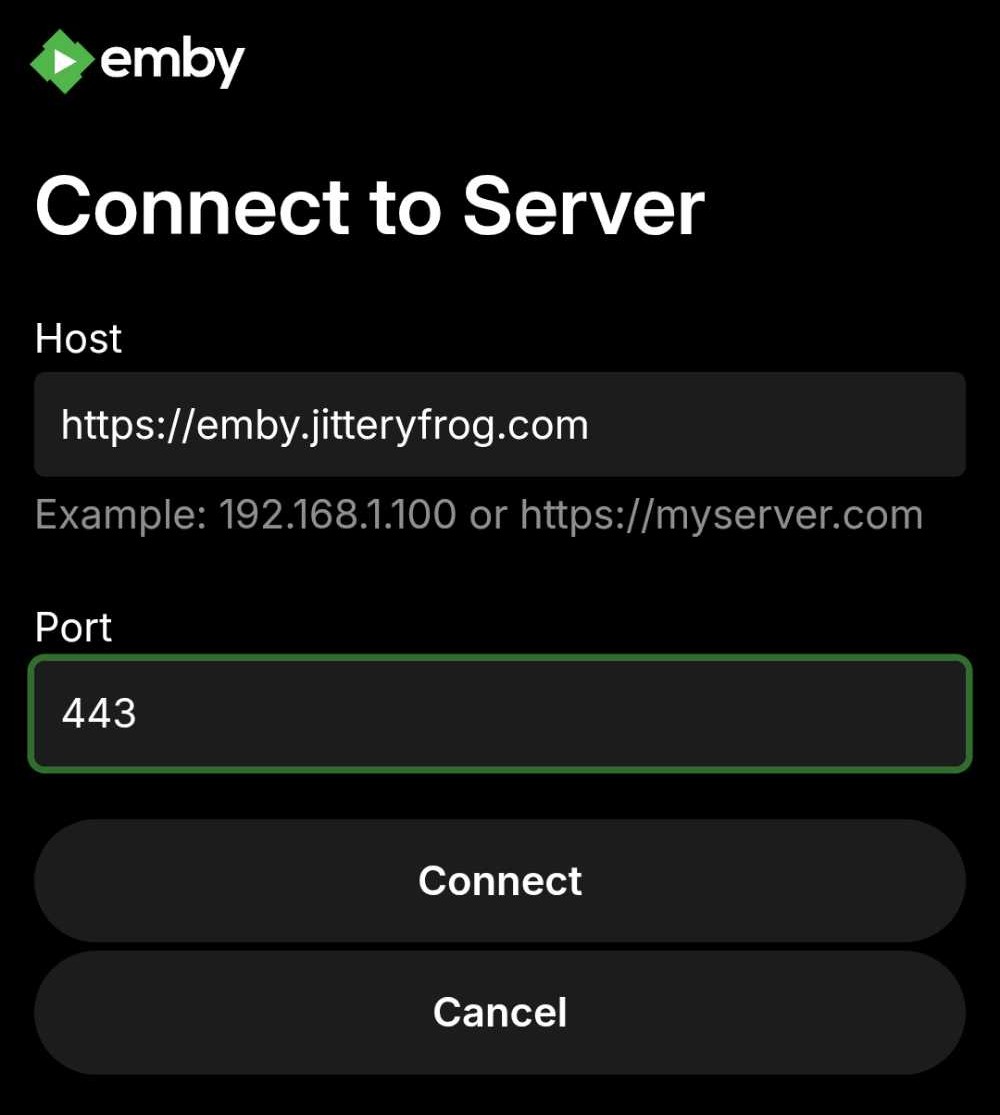
- Enter Host Details: Type the server URL along with the port (e.g.,
https://emby.jitteryfrog.comfor the host and443for the port).
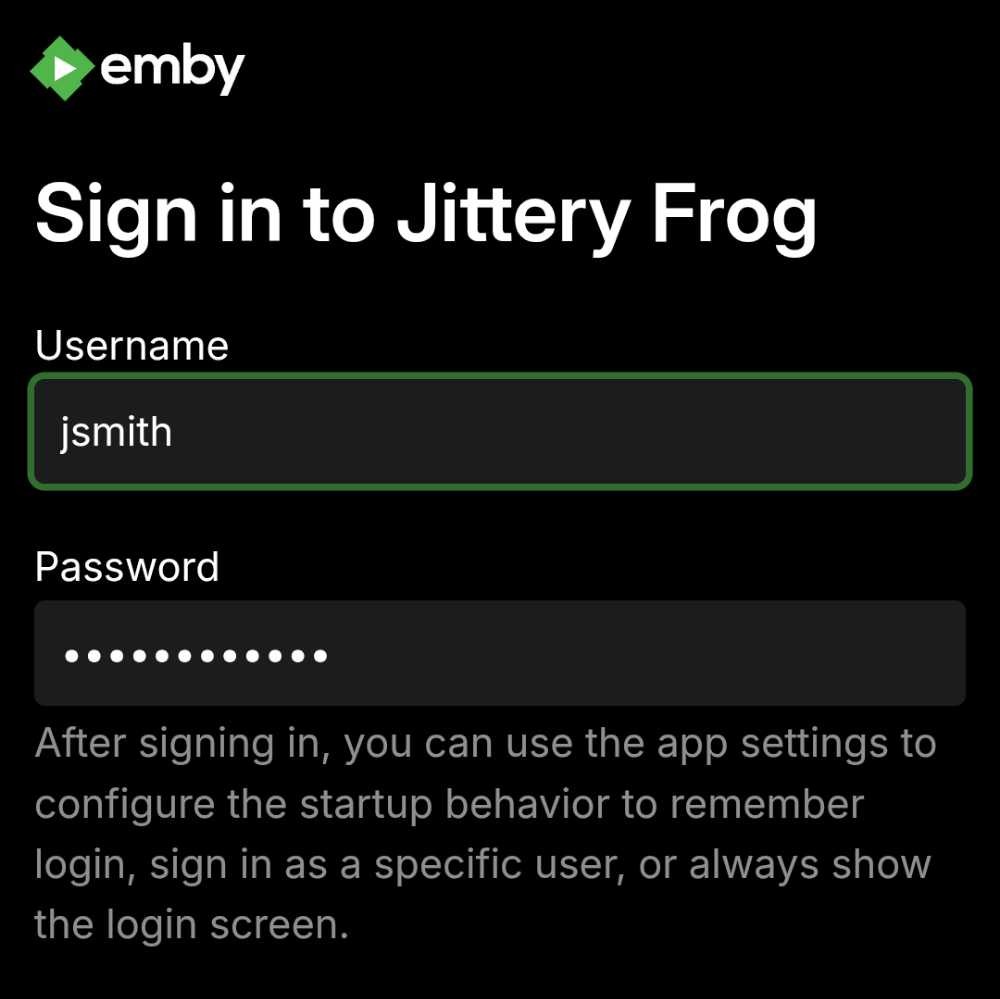
- Log In: Enter your username and password to connect.
Signing In via Smart TV / Streaming Device (Roku, Android TV, Apple TV, Fire TV)
Do not click “Sign in with Emby Connect”. It requires me to put your email in beforehand.
- Download: Download and launch the Emby app on your smart TV or streaming device.
- Add Server: Open the app and tap Add Server.
- Enter Host Details: Type the server URL along with the port (e.g.,
https://emby.jitteryfrog.comfor host and443for port). - Log In: Enter your username and password to connect.