Getting Started
This guide walks you through completing your account enrollment and accessing your personal application dashboard. You will learn how to set up your login credentials from your invitation link and quickly launch your assigned services using single sign-on. In just a couple of steps, you will be fully set up and ready to use the platform.
Table of contents
Accepting the Invite
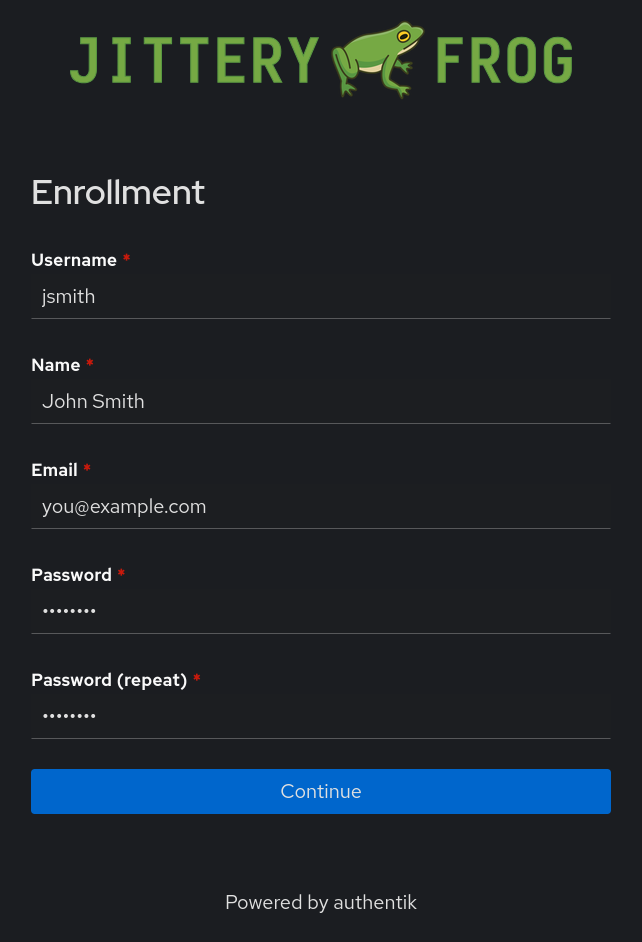
Once you click the invitation link received in your email/text, you will be directed to the enrollment page to set up your account credentials and personal details. Complete the required fields to finalize your registration and access the portal.
- Username: Enter your desired unique username for logging into the platform.
- Name: Provide your full display name.
- Email: Enter the email address associated with your invitation.
- Password & Password (repeat): Create a secure password and enter it again in the confirmation field to ensure accuracy.
- Submit: Click the blue Continue button to finish enrollment and proceed to your dashboard.
Accessing Applications
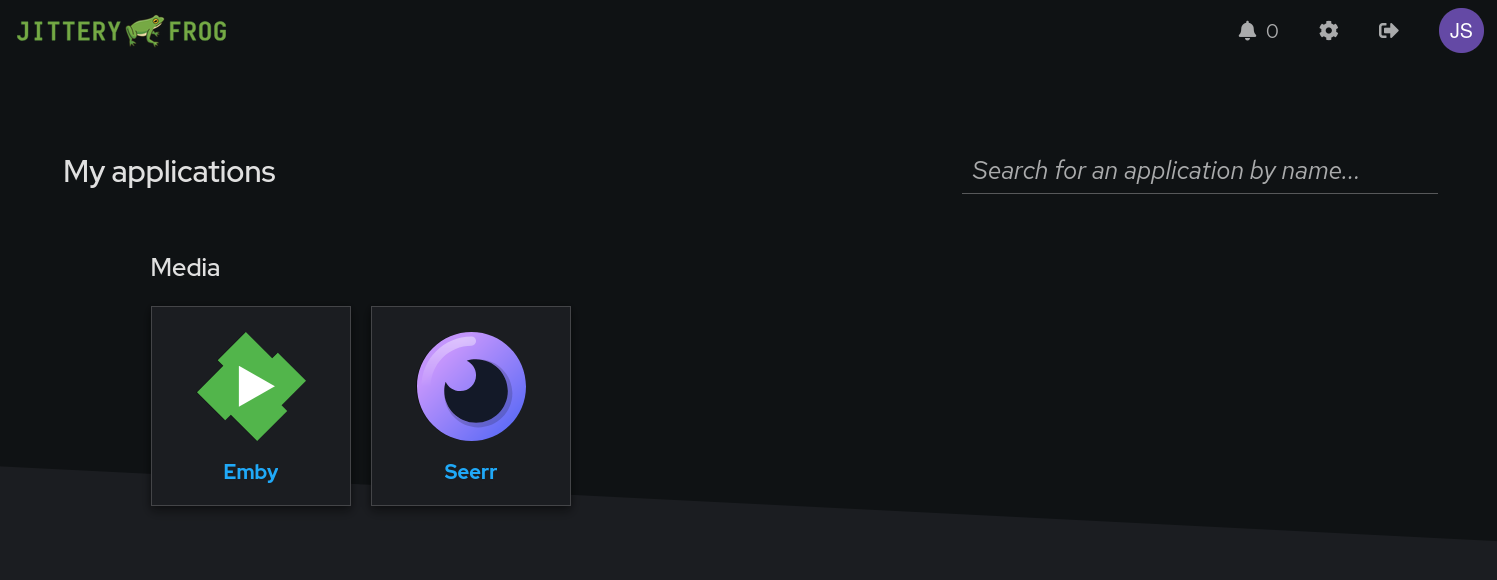
After completing enrollment, you will be taken to your personal dashboard under My applications. This serves as your central hub to launch and access all services and tools assigned to your account.
- Browse Services: View available services grouped by category (such as Media).
- Launch an Application: Click directly on any application tile—such as Emby or Seerr—to open the service and sign in via Single Sign-On (SSO).
- Search: Use the Search for an application by name… bar in the top right corner to quickly locate a specific tool if multiple apps are listed.
- Account Controls: Use the top-right navigation icons to check notifications, adjust account settings, or log out of your session.